The Cast Button Is Missing: Check the App and Network First
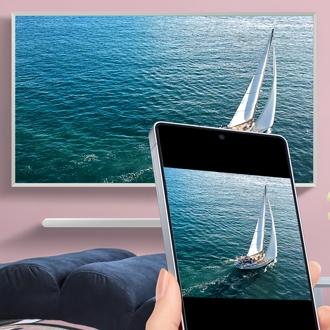
A television being smart does not mean every app can cast to it. Begin with the casting method the app supports and the network used by the phone and television.
Know which part you are checking
Google Cast uses compatible sender and receiver software. Screen mirroring and casting from an app are different methods, and subscription restrictions may also apply. Check the current support page for the app you want to use.
A practical sequence
- Confirm that the app and receiving device support the same casting method.
- Check that both devices are on the same home Wi-Fi network.
- Update the app through its official store and reopen it.
- Check discovery permissions where the operating system requires them.
An example to recognise
A phone uses mobile data while the television is on home Wi-Fi. Joining the phone to the same network is a relevant first test; buying another streaming device is premature.
Before you finish
Do not assume a feature is supported by a particular subscription. Use the service current device guidance.
Test the result on the device and account you intend to use. Check a short sample before settling in for a full programme or leaving home. Features, available titles and interface labels can vary by region, app version and subscription, so keep the current official help page available.