Use the Right Remote Before Resetting a Streaming Stick
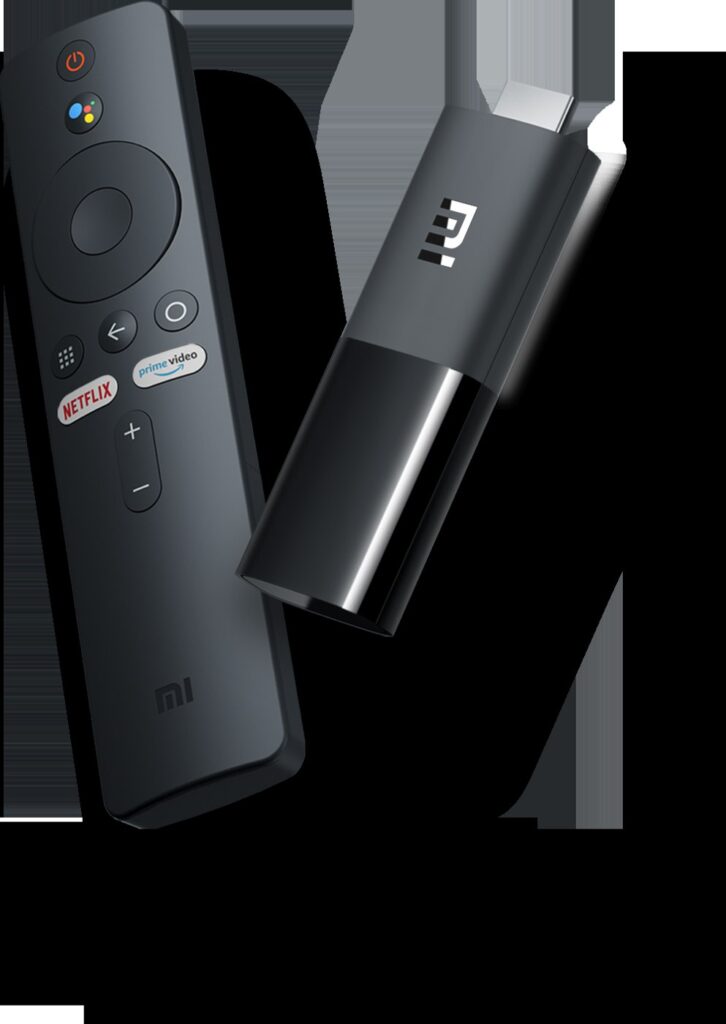
A television remote and a streaming-stick remote can control different parts of the setup. Identify whether the problem is input selection, device power or app navigation.
Know which part you are checking
A blank screen is not the same as a frozen app. A useful first check is whether the television is displaying the HDMI input where the streaming device is connected.
A practical sequence
- Check the television input selection using its own controls.
- Confirm the streaming device power connection against its manual.
- Check the remote batteries and supported pairing procedure.
- Test navigation before opening a specific app.
An example to recognise
A family sees a television broadcast channel while pressing buttons on the streaming remote. Selecting the stick HDMI input resolves the mismatch without a factory reset.
Before you finish
Use the manufacturer power recommendations. A television USB port is not automatically sufficient for every streaming device.
Test the result on the device and account you intend to use. Check a short sample before settling in for a full programme or leaving home. Features, available titles and interface labels can vary by region, app version and subscription, so keep the current official help page available.